
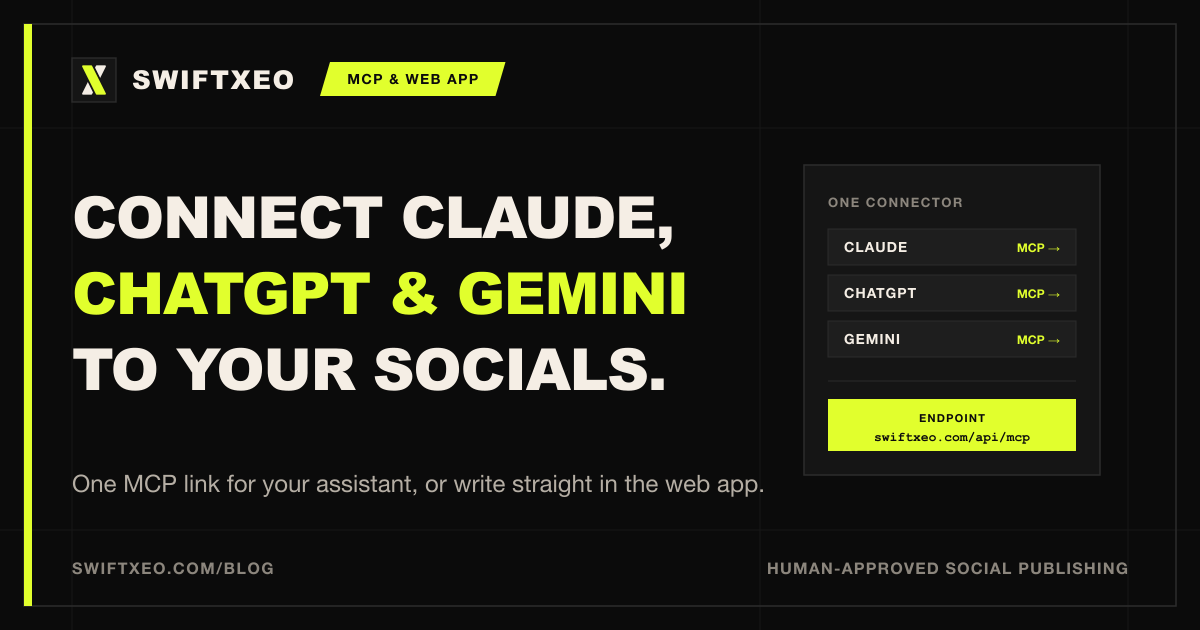
If you already keep Claude, ChatGPT, or Gemini open while you work, you don't need to copy drafts out of chat and paste them into every social app. You can connect that assistant directly to SwiftXEO through one link.
And if you don't want to connect an external assistant at all, you don't have to. Everything works straight inside the SwiftXEO web app too.
Connect your assistant
You add one address to your assistant, https://www.swiftxeo.com/api/mcp, and sign in to SwiftXEO once. After you click Allow on the SwiftXEO consent screen, your assistant can read your channels, Brand voice, and Library, and send finished drafts to your Queue.
During sign-in, SwiftXEO shows you a plain list of what the assistant can do and what it can never do. It can draft posts and create Studio media, and it can never approve, publish, or touch your channel tokens.
| Assistant | Where to add the address | Skills / extras |
|---|---|---|
| Claude (web & Desktop) | Connector settings → Add custom connector | Upload the SwiftXEO plugin zip or use built-in connector prompts |
| Claude Code | Run: claude mcp add --transport http swiftxeo https://www.swiftxeo.com/api/mcp | Unzip skills into ~/.claude/skills/ |
| ChatGPT (web) | Plugins → Add custom MCP server | Copy skill instructions into a Project or GPT; click Refresh after updates |
| Gemini (web) | Customize → Connectors → + Custom | Upload a skill's Download for Gemini zip via Customize → Skills → Create → Upload |
| Antigravity | Unzip the Antigravity plugin into ~/.gemini/config/plugins/ | Loads the connector and all three skills together |
Notes for Gemini and Antigravity
On Gemini web (gemini.google.com), connectors and skills live under Customize, in the sidebar or under More. Open Connectors → + Custom, paste https://www.swiftxeo.com/api/mcp, leave Additional settings collapsed, and click Next. Gemini sends you to SwiftXEO: sign in, check the workspace and what Gemini can and can't do, then click Allow. Whether you can add a custom connector can depend on your Google account type or Workspace policy.
To add a SwiftXEO skill in Gemini, use Download for Gemini on your Channels page. Then open Customize → Skills → Create → Upload and pick that zip, one skill at a time. You can also choose Create manually and paste the copied skill text.
To check the connection, start a new chat, type @, pick SwiftXEO, and ask Gemini to list your connected channels.
In Antigravity, unzip the Antigravity plugin into ~/.gemini/config/plugins/, reload Antigravity, and sign in with SwiftXEO when it asks. The connector and all three skills load together.
We have short video walkthroughs for Gemini (https://youtu.be/QcLY1nfdDWM) and Antigravity (https://youtu.be/QKfEJ7kGZAo).
Ready-made skills you can add
On your Channels page under Assistants, SwiftXEO includes three ready-made skills: Brand voice (guided setup interview), Repurpose (turn one video into native posts for each channel), and Content week (turn one idea or build into a week of Queue drafts). None of them can approve or publish anything.
Using the web app without an assistant
You can run your whole publishing flow inside the SwiftXEO web app without connecting Claude, ChatGPT, or Gemini. Open Compose to write your own text per channel, make pictures or short clips in Studio, keep everything in your Library, and schedule from your Queue and Calendar.
Whether you draft in chat or write everything yourself in the browser, every post still lands in your Queue and waits for your yes.