
Letting software post under your name without asking still feels strange. A wrong date, a weird phrasing, or the wrong picture goes out under your account, not the software's.
A lot of AI social tools try to post for you automatically. We built SwiftXEO the other way around.
Why a person says yes
SwiftXEO asks a person to say yes on every post because you're the one who has to stand behind what gets posted. Software is useful for drafting options, adjusting copy per channel, and resizing pictures, while a person should still decide what goes live.
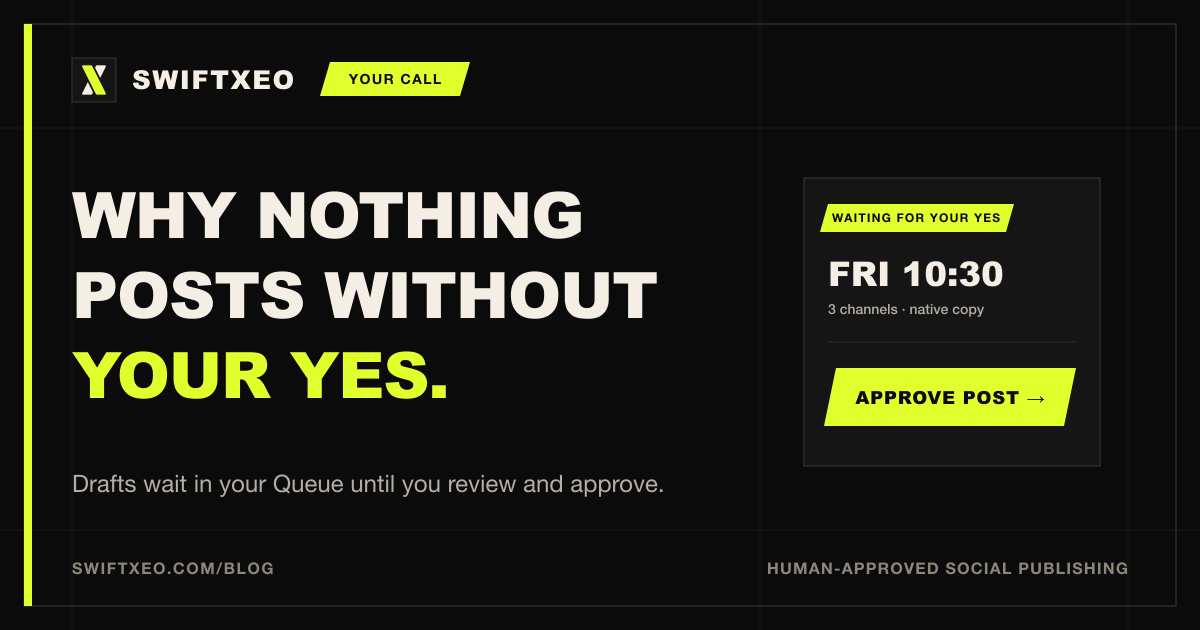
Everything in SwiftXEO leads to the approval screen. When you open a waiting post in your Queue, you see the exact picture or clip, the exact text for every channel, the exact accounts, and the exact time it will go out.
What your assistant can do, and what it can't
Your assistant can draft posts and prepare media, while only a person can approve or publish. The server enforces that split, because connected assistants don't have an approve or publish tool to call.
| Action | Your AI assistant | You (in SwiftXEO) |
|---|---|---|
| Read your Brand voice and channels | Allowed | Allowed |
| Draft native text for each channel | Allowed | Allowed |
| Make pictures or short clips in Studio | Allowed (clips quote first) | Allowed |
| Put drafts in your Queue | Allowed | Allowed |
| Approve, publish, or retry a post | Never allowed | Your call |
| Connect or disconnect social accounts | Never allowed | Your call |
Your yes is bound to what you saw
If your assistant changes a single word or moves the time on a post you already approved, SwiftXEO moves that post back to waiting. What you approve is what goes out.
If a post is scheduled for Friday morning and you change your mind on Thursday night, open it and take back your yes. Scheduled and Posted are separate states with separate labels.
Your yes in a normal week
When you open your Queue, the drafting, resizing and channel versions are already done. You read the finished drafts, change a word where a line sounds off, swap a picture from your Library, or bin the ones you don't want.
If it looks right, you tap Approve.